2.1 Downloading and installing
The software is downloaded from the site’s downloads page, in two versions: Windows 64-bit and macOS Apple Silicon (Macs with an Intel processor are not supported).
The software is not digitally signed: Windows and macOS therefore display a warning the first time the installer or the application is launched. This is expected; the steps to follow are given below.
Windows: run the installer. If Windows displays “Windows protected your PC”, click More info, then Run anyway. Then follow the steps: a page announces the license agreement, accepted at the first launch (below), then choose the installation. By default, it is made for the current user, without administrator rights; the installer also offers an installation for all users. A shortcut is created in the Start menu and, if you wish, on the desktop. .hw4x project files are associated with the software: a double-click opens them. If another program has been chosen to open .hw4x files, HotWire4X is still offered in the “Open with” menu of File Explorer.
macOS: open the disk image and drag HotWire4X into Applications. On the first launch, the system refuses to open an unsigned application downloaded outside the App Store. Up to macOS 14: right-click the application, then Open. From macOS 15 onward: launch the application once (the system blocks it), then open System Settings ▸ Privacy & Security and click Open Anyway.
2.2 Accepting the license agreement
On the first launch, before the startup screen, HotWire4X shows its license agreement (EULA), preceded by a word from the author. It opens in the system’s language; the Français and English buttons at the top of the window switch the language. Tick “I have read the license agreement and I accept its terms”, then click Continue.
The agreement is asked of every user of the computer, once, then again when a new version of the software brings a newer version of the agreement. Cancel closes the software and explains how to uninstall it; Back to the agreement returns to the text.
2.3 Updating
Install the new version over the old one, the same way. The machines, the materials, the library and the license are not touched: they live in the data folder and in the license cache, not in the program folder.
2.4 The data folder
On the first launch, HotWire4X creates a HotWire4X folder in the user’s Documents:
Datas: the machines (machines.json) and the materials (materials.json);Library: the library of profiles and projects, the one shown by the Design, Wing, Sections and Views tabs. It comes with a few examples: a circle in DXF, a file of rectangles in text format, two complete projects, the Corsair F4U (Corsair F4U.hw4x) and the Caudron C450 (Caudron C450.hw4x), and, in theAirfoilsfolder, four wing profiles, the NACA 0009, the NACA 2412, the Clark Y and the Eppler 387.
Each example is copied only once: a deleted example does not come back, and a modified file is never overwritten. A new version of the software adds its new examples to the existing library. To get all the examples back, delete the Datas/.hw4x_seeded file, then restart the software: the missing examples are copied again.
This is where it is best to keep all your profile and project files. This folder can be moved (to a shared drive, a synchronized folder) from the software’s settings (chapter 3).
2.5 The startup screen
At each launch, the startup screen takes stock before opening the main window.
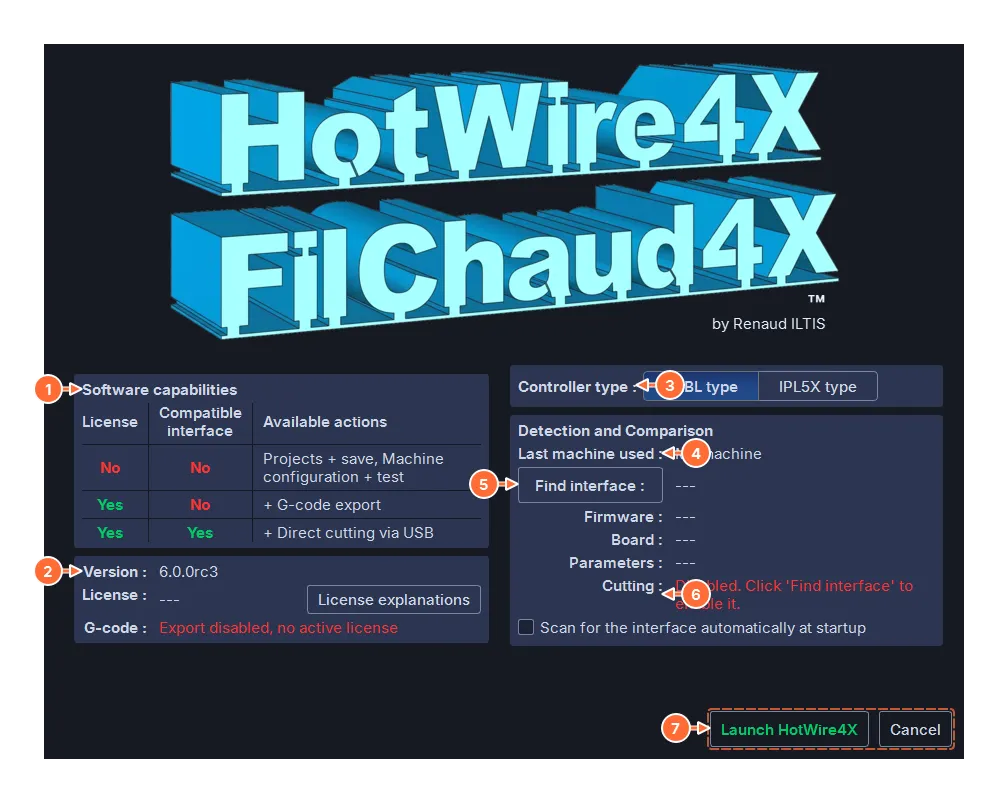
- Software capabilities: what is possible without a license, with a license, and with a license plus a compatible interface.
- The software version, the active license (the holder’s e-mail address and the license type, or a dash; License explanations recalls what it unlocks), and the status of the G-code export.
- Controller type: GRBL or IPL5X. The choice holds for the whole session: to change interface, go back to the startup screen (toolbar button). The type offered is that of the last machine used.
- Last machine used: the machine that will be active; it can then be changed in the main window.
- Find interface: looks for the interface on the USB ports, identifies its firmware, compares its parameters with the machine. The box below it runs this detection automatically at each startup.
- The result: the port and the board found, the firmware, the parameters (whether or not they match the machine), and the Cutting line, which concludes: enabled, or disabled with the reason (no interface, firmware of another family, different parameters, no license).
- Launch HotWire4X opens the main window; the Enter key does the same. Cancel quits.
Disabled cutting does not prevent you from working: design, machine configuration and machine tests are always possible. When the parameters do not match, the configuration window and its Transfer & Test button settle the matter (chapter 6).
The software runs only once at a time: a second launch brings the HotWire4X that is already open to the front, and nothing else. A .hw4x file opened by a double-click at that moment is not loaded: open it from the File menu of the window that is already open.