16.1 What the license unlocks
Without a license, HotWire4X is complete for everything that comes before the cut: design in all the tabs, saving projects, machine configuration and machine tests, simulation. Three actions require a license:
- direct cutting over USB;
- G-code export;
- the display of the G-code in the Cutting tab.
Any export in a format other than .hw4x also requires a license: the profiles exported from Design (side 1, side 2, intermediate profile, in DAT or DXF), the two outlines of the Views tab and the DXF of the vectorization.
As long as no license is active, a small red License off indicator is shown in the status bar of the Cutting tab. An action that requires a license opens the “License required” window, with Activate license… and Buy a license.
16.2 The three license types
The license is bought on the site’s purchase page; it is issued in the holder’s name and comes in three types, which all unlock the same functions and differ only in the permitted use and in the number of computers on which the key can be active at the same time:
- Personal: one person, for their own non-commercial use; 1 computer, or 2 with the Personal License — 2 computers (home and workshop, with no deactivation needed);
- Education and Non-Profit: non-profit schools, clubs and associations, for non-commercial use; 3 computers;
- Pro: any person or company, commercial use allowed; 5 computers.
A license can also be bought with the Quick Start course: it gives the same rights as the license alone, and its key is activated the same way. The license window then shows the type of the license included in the purchase.
The license type is shown in the license window, on the startup screen and in the settings. The computer limit is enforced by the license server, not by the software.
16.3 Activating
Help ▸ License… (or Manage license… in the settings, About page) opens the license window.
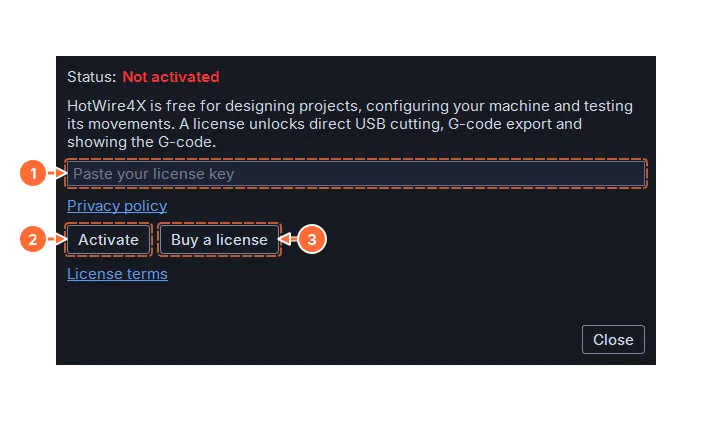
- Paste the key received by e-mail after the purchase, then Activate. An internet connection is required at that moment. The key takes up a seat on the server, and an encrypted receipt, tied to this computer, is saved in the application’s local folder (never in the documents nor in a synchronized folder: copying this file to another machine is pointless). If saving fails, the seat is given back.
The window then shows the license status, the product, the type, the number of seats used at the last verification, the holder’s e-mail address, the dates of activation and of the last verification, and the identifier of this computer (see What is transmitted). The key is masked, except for its last four characters: Show key shows it in full, Copy key copies the complete key to the clipboard. Verify now forces a verification with the server.
16.4 The periodic verification
At startup, the software reads the local receipt, without any connection. An online verification takes place in the background every 14 days; if it cannot be made (no network, server unreachable), nothing changes for up to 30 days after the last successful verification. Beyond that, the licensed functions are blocked until the next successful verification: nothing is lost, and connecting once is enough. A computer that is online at least once a month notices none of this.
A network outage is never a sanction. Only a negative answer from the server (key refunded, deactivated elsewhere, suspended) blocks the functions; that state is then kept until a successful verification or activation.
16.5 Changing computers
Deactivate this machine in the license window (connection required) frees the seat and erases the local receipt; the same key can then be activated on the new computer. If the old computer is no longer available, the store page lets you manage the activations of the key.
16.6 What is transmitted
The software’s only exchange with the outside world is the license: at activation, verification and deactivation, the key, an identifier of the installation (the computer name, the operating system and the date) and the version are sent to the license server. No project and no design data leaves the computer. The terms of use and the privacy policy can be reached from the license window and from Help ▸ About HotWire4X.
16.7 Third-party components
HotWire4X includes open-source libraries (Qt, Python and others). Their licenses and notices are gathered in a file installed with the software; the Third-party licenses link, in Help ▸ About HotWire4X and on the About page of the settings, opens it.